Chapter 1. Download Happy Chick Emulator and Games
Please make sure your iPhone is version 7.0 or later and the Bluetooth is turned on. Also, the GameSir X1 is standby.Video tutorials:
Step 1. Install the Happy Chick EmulatorStep 2. Install games through Happy Chick Emulator
Text-based tutorial:
- Use Safari on your iPhone to go to the Happy Chick page HERE and install the Happy Chick Emulator app. Your iPhone's version must be 7.0 or later.

- Trust the app before opening it: Settings > General
> Device Management > Trust "Ashamed Healthcare Communications
LTD" (The Company name may vary). Not to trust the app will cause the
failure to open.

More games are coming soon...
- Arena of Valor
- Mobile Legends
- Rules of Survival
- Knives Out!
- Free Fire
- Download and install the game: Get > Searching game resources
> Download > Select either Method One or Method Two > Install
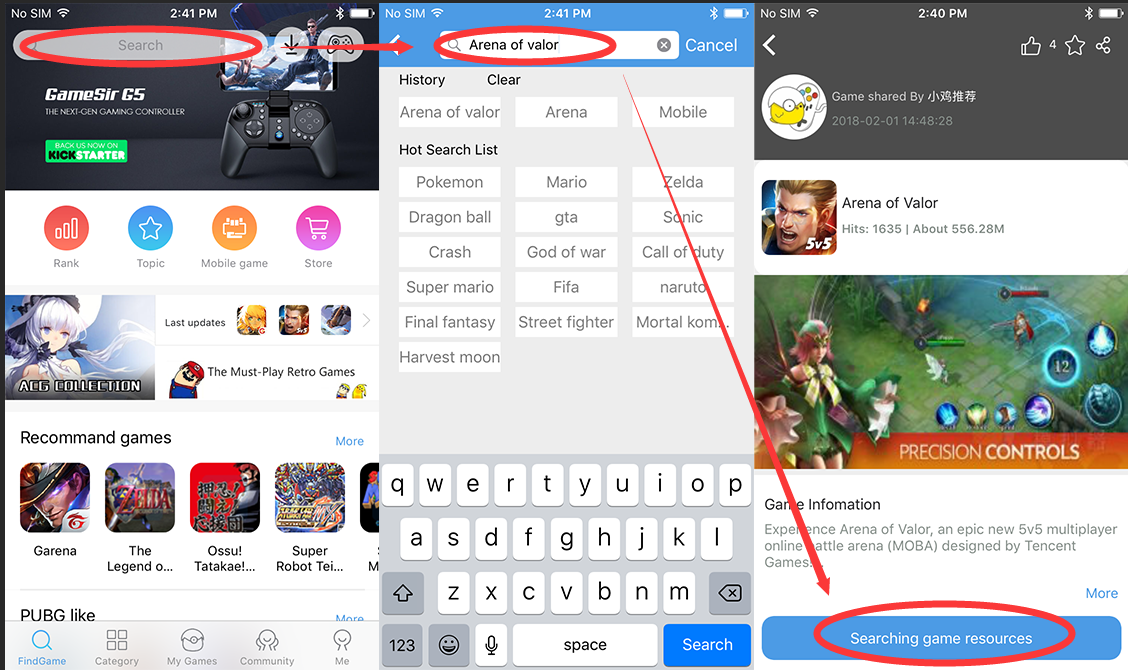
- Back to the home screen and trust the game you just downloaded: Settings > General > Device Management > Trust "Beijing Jin Lancheng Technology Co LTD" (The company name may vary). Not to trust the game will cause the failure to open.
Chapter 2. Connecting GameSir X1
- Short-press the GameSir X1's mode-switch button and turn it on. Make
sure the Bluetooth indicator is flashing, that means it is searching
for Bluetooth devices. (If the home button is solid lighting, that means
it has been already connected to a Bluetooth device nearby.)

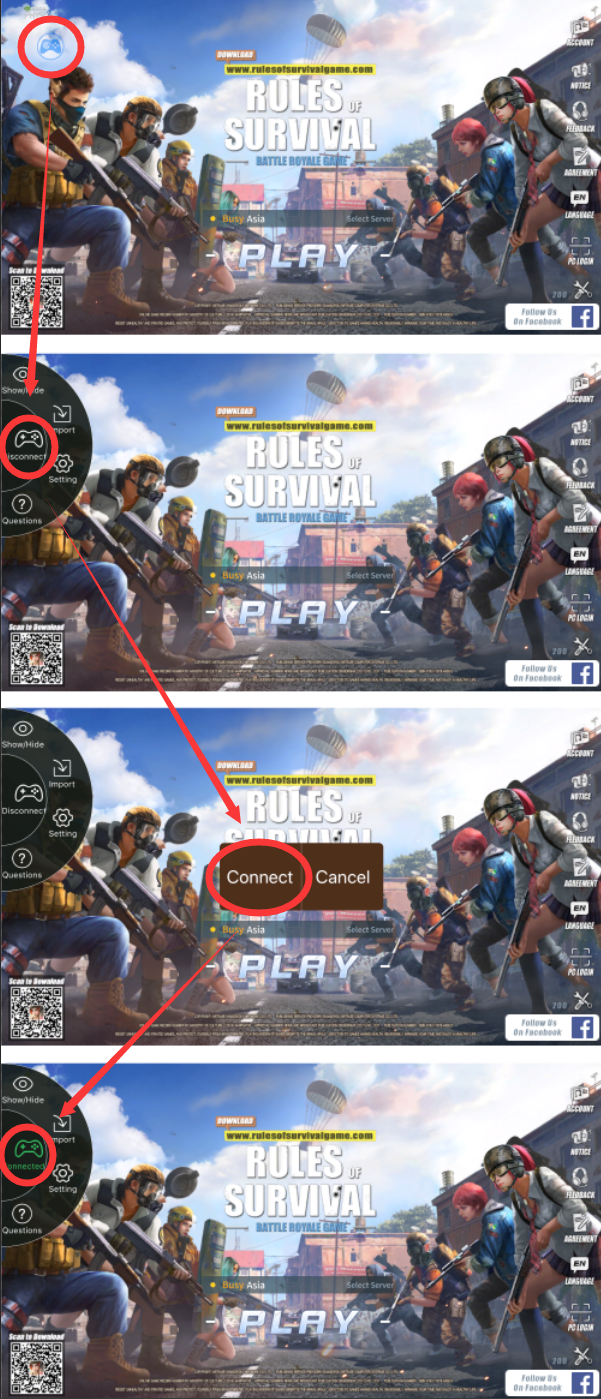
- Open the game you downloaded, now you will see a blue icon in the left top corner of the screen, now tap the blue icon > Disconnected icon > Connect. If the connection is successful, the GameSir X1's Bluetooth indicator light will stay solid, the gamepad icon on the iPhone's screen will be turned green.
Chapter 3. Button Configuring
- Once GameSir X1 was connected to the game, you may now see the
floating buttons have been automatically configured on the game
interface. Insert keyboard and mouse to the USB1/USB2 ports, the GameSir
X1 is now good to control the game!

- If you want to make your own button configuration, short-press
the mode-switch button of GameSir X1 to recall the button setting menu.
Use your finger to drag and place the buttons to where you want it to
be on the screen, press the home button of GameSir X1 again to save and
close the menu, then you are all set with the new button configuration!

- In button setting menu, you may tap any floating button to make advanced settings on them.

